AIDAS User Guide
For trainees and instructors · version 1.0 · October 2026
Download PDFTrainee guide
1. Signing in and language
Go to hasartespitakademi.com and press Sign in at the top right. Use the trainee code and password your instructor gave you; if you have none, ask your instructor.
The interface runs in Turkish and English. The EN/TR button at the top right of the sign-in screen and the same button in the top bar of the training page switch the language; the choice is remembered in this browser.
On first sign-in the consent text is shown: records are pseudonymous, it lists which data are stored and why, and you may withdraw at any time. Content opens only after you agree; you can re-read the text later with Show consent text again on the home page.
Your work is saved on the server; signing in from another device with the same code continues where you left off.
2. Home page and the four stages
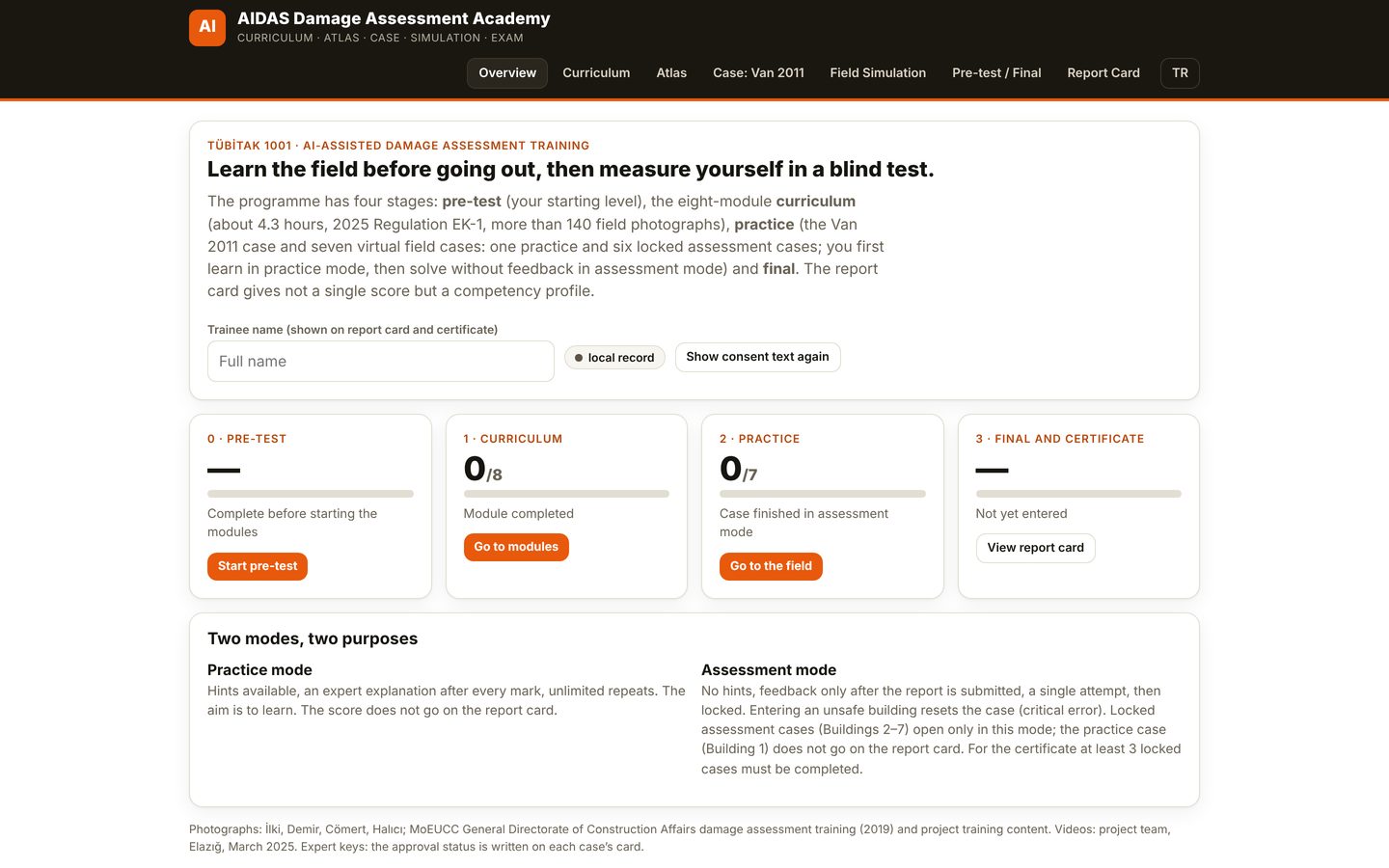
The home page shows the four stages and your progress: 0 · Pre-test, 1 · Curriculum (8 modules), 2 · Practice (7 cases), 3 · Final and certificate.
Order matters: take the pre-test first, then the modules. The pre-test measures your starting level; its score does not enter the report card and is kept only to compute learning gain.
The name you type in the trainee-name field appears only on the report card and the certificate.
3. Pre-test and final
Both exams have 15 items and are parallel forms drawn from a 37-item bank by the same blueprint; item order differs per trainee.
During an exam the curriculum and the chat assistant are closed. There is no time limit; if you close the page the exam resumes where it was.
The final opens once all modules and at least 3 locked cases are complete. The certificate requires the modules, the Van case, at least 3 locked cases and 70% in the final.
4. Curriculum
Eight modules follow Annex EK-1 of the 2025 regulation: the assessment process, field safety and communication, exterior inspection, RC element classes (Table 2.1) and crack measurement, masonry buildings, the Category-2 calculation (DEAHY), reporting and the objection process.
Each module lists its learning objectives and sections on the right and ends with a short quiz; repeat it as often as you like, the best attempt is recorded.
Table 2.1 is given verbatim. “Common error” boxes highlight the differences between the 2019 training material and the 2025 table (for example, cover spalling is class B).
5. Damage atlas
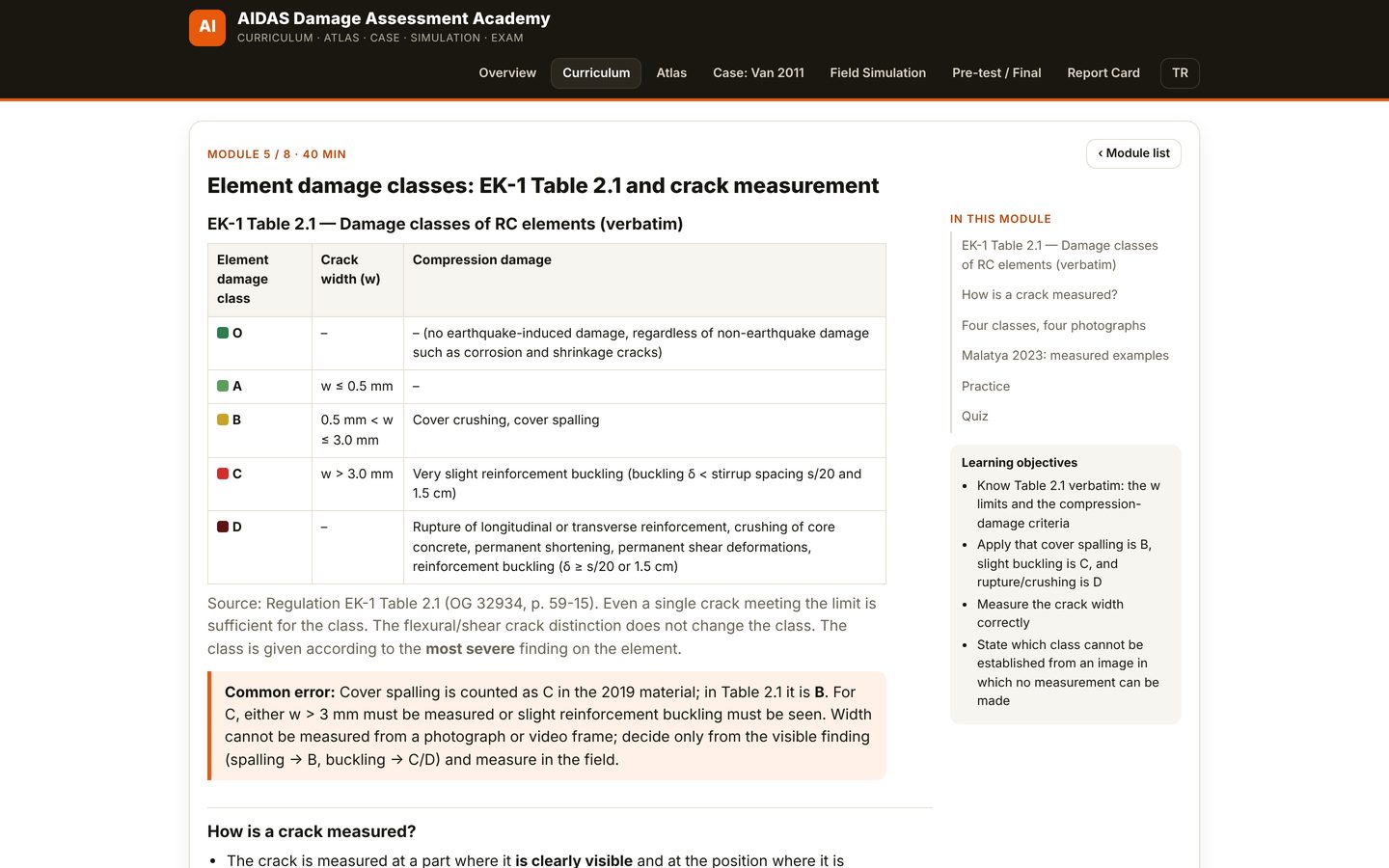
The atlas collects the field photographs used in the modules by topic: non-earthquake images (corrosion, shrinkage, expansion joints), plaster/element cracks, non-structural damage, Table 2.1 classes, the measured Malatya 2023 elements and masonry buildings.
Photographs used in the assessment cases are not in the atlas, so case results measure transfer rather than recall.
6. The Van 2011 case
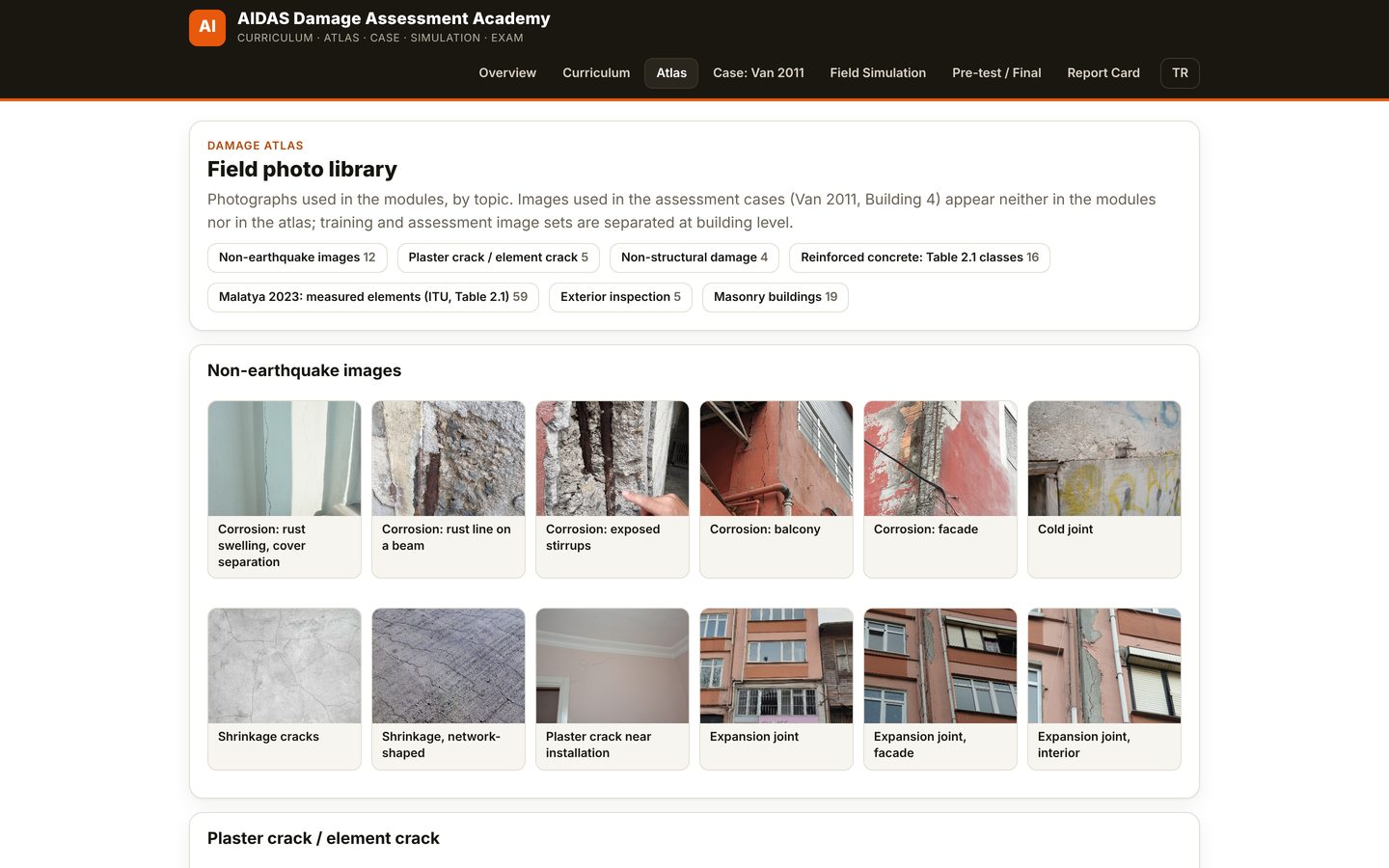
A teaching case: you assess the columns of a three-storey RC building in Alaköy one by one. For each column you first give your own class; the AI suggestion is then shown and you may change or keep your decision.
At the end the storey count and the building verdict are compared with the published expert key. The score enters the report card.
7. Field simulation: case types and modes
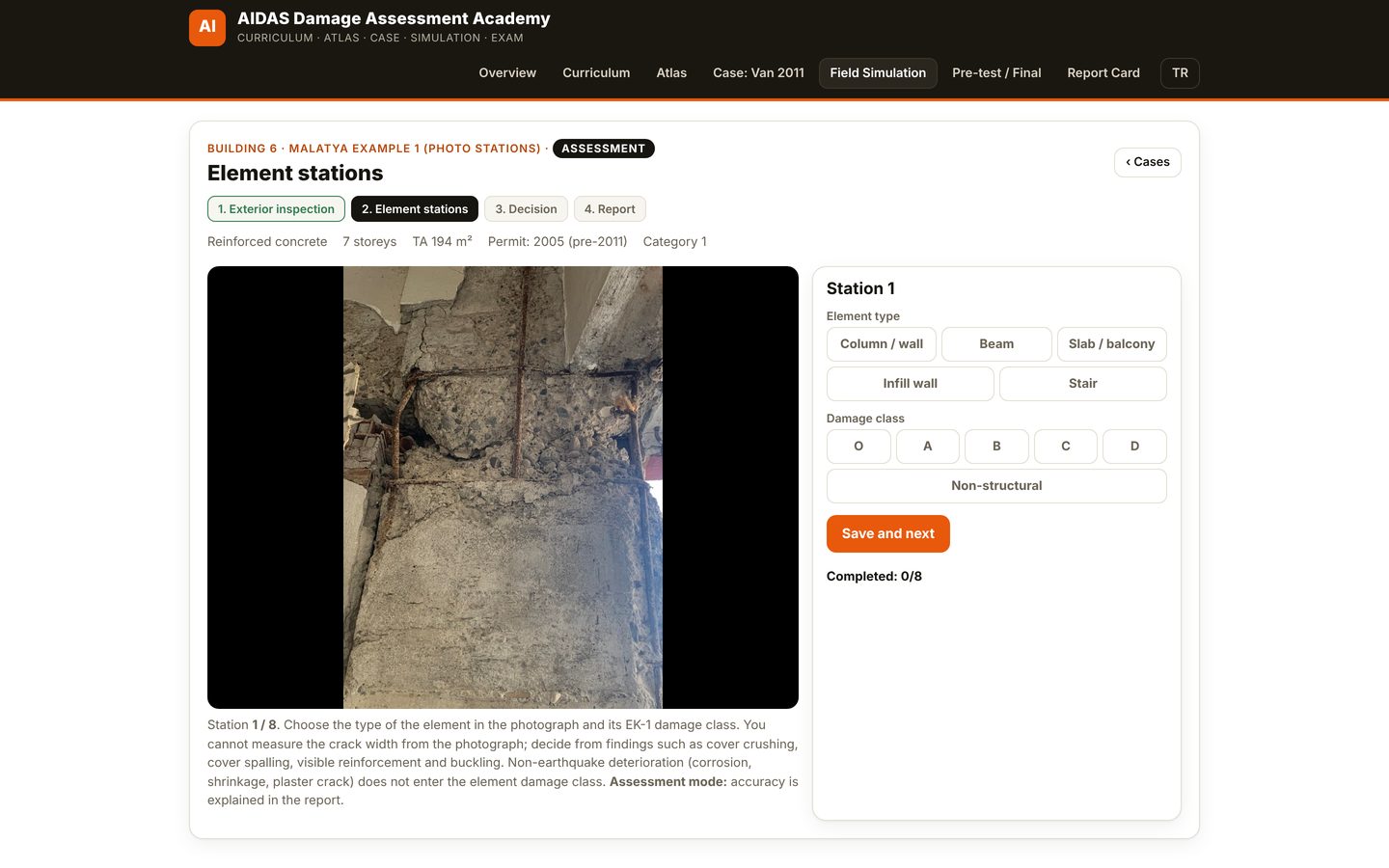
There are seven cases. Building 1 is the practice case (hints, unlimited repeats, not on the report card). Buildings 2–7 are locked assessment cases: a single attempt, feedback only after the report is submitted.
Case types: UAV video cases (Buildings 1–3, Elazığ), an exterior-photograph safety case (Building 4), a Category-2 calculation case (Building 5, Malatya) and photo-station cases (Buildings 6–7, measured Malatya 2023 examples).
Each case card states its source, the basis of its key and its limitations. Open a locked case with Start assessment; timing starts then.

8. Case flow: exterior → enter or decide from outside
1 · Exterior inspection: answer the four questions (total collapse, partial collapse/wall failure, permanent drift, foundation rotation) and choose your action: enter, or decide from outside.
Entering an unsafe building ends the case with a critical error; under the regulation a building with collapse or drift is decided from outside.
2 · Interior / stations: in a video case pause the video and click the damage, then choose the element type (column/wall, beam, slab/balcony, infill wall, stair) and class (O–D or non-structural). In a station case each photograph is one element.
3 · Decision: review the automatically compiled element counts, choose the building grade, give a 0–100 confidence and write your justification. 4 · Report: submit; in a locked case feedback appears only after this step.

9. The AI second opinion
The assistant is available only in the mark form and only after you have chosen an element type and class, so your first, unassisted decision is always recorded.
Its answer: suggested element and class, a 0–100 confidence, visible findings, a short EK-1-based rationale and a limitation sentence (for example “crack width cannot be measured from this frame”). It states whether it agrees with your choice.
Choose Apply suggestion or Keep my decision; you may still edit the fields before saving. Your first decision, the suggestion and your final decision are stored on the server; they never affect your score.
The assistant is disabled for accounts in the control group and has a daily request limit (80). The curriculum chat assistant is closed during exams and locked cases and does not give case answers.
10. Report card and certificate
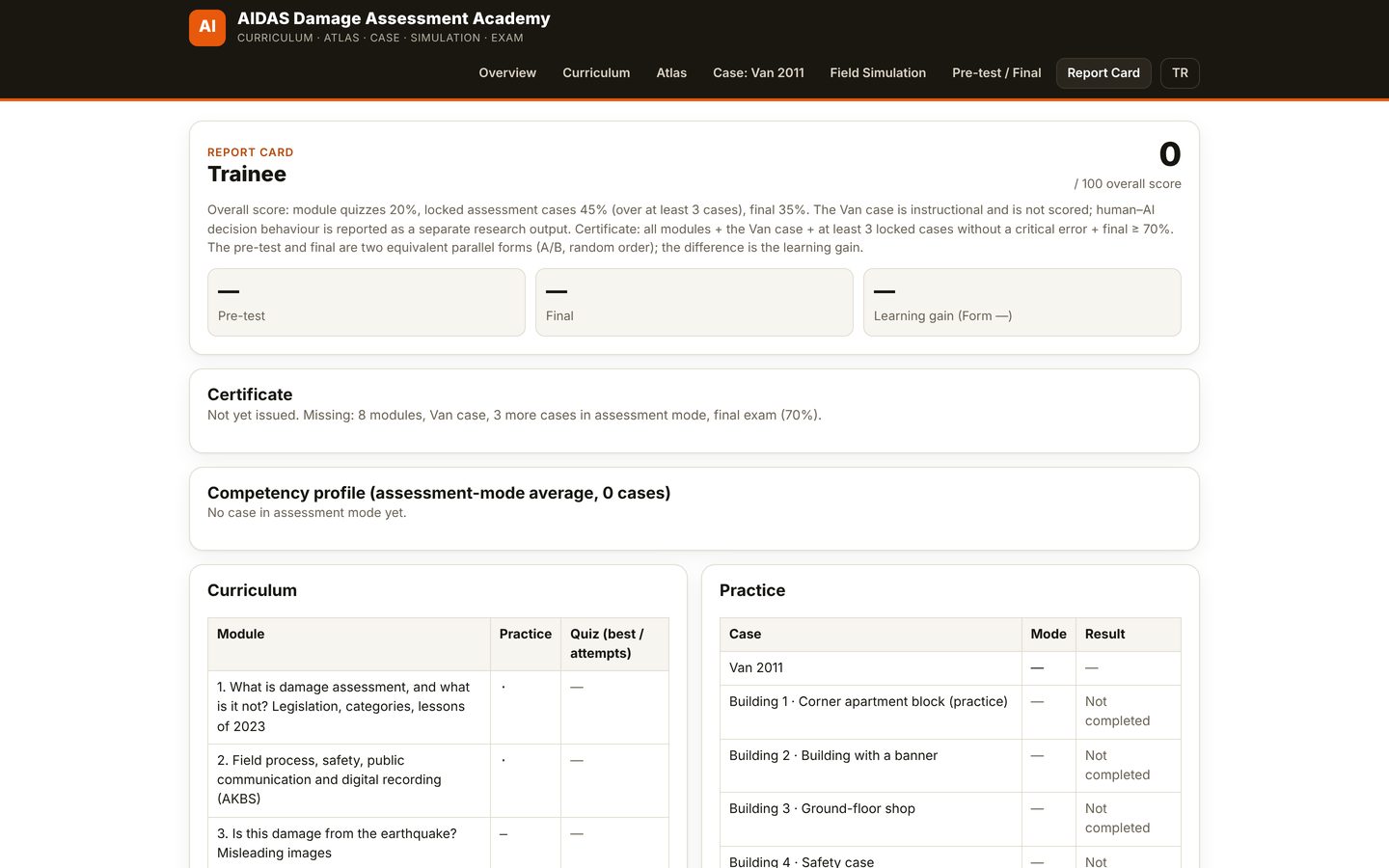
The report card is a profile, not a single score: pre-test, final and learning gain; module quizzes; case results (mode and outcome); and a competency profile derived from assessment-mode cases (exterior observation, element identification, class, counting and decision, safety).
Overall score: module quizzes 20%, locked assessment cases 45% (best 3), final 35%. The Van case is instructional and is not scored; AI decisions never enter any score.
The certificate can be downloaded from the report card once the conditions are met; your name appears as typed in the trainee-name field.
11. Frequently asked questions
A case was interrupted. Reload the page; a locked case resumes. After a power or network failure your instructor can reset the case.
Photographs do not load. Wait a few seconds on a slow connection; video cases are 720p and may take longer on mobile data.
I forgot my code/password. Your instructor can set a new password; your records are kept.
My data. Records are pseudonymous; frames and justification texts are sent to the AI provider only for assessment, never your name. Write to your instructor to withdraw or to have records deleted.
Instructor guide
12. Instructor sign-in and user management
Sign in at /giris with the instructor code and password; the /yonetim page opens user management (instructor role only).
Add a new trainee: code (no spaces), password, full name, role and research group. Leaving the group as Random, balanced lets the server assign while keeping the two groups equal (recommended for the pilot); With assistant turns the AI on, Control turns it off.
Bulk add: one line per person, code;password;full name;group. Re-adding an existing code updates the password and group; * in place of the password keeps the old one.
You hand the code and password to the trainee; the platform sends no e-mail.
13. Monitoring, export and reset
In the user table the result and AI-use columns show whether a trainee has used the platform. Detailed results are in the Instructor tab of the training page.
Download results CSV gives every trainee’s test, module and case results; AI log CSV gives every AI interaction (first decision, suggestion, final decision, time). Together they are the raw data of the reliance analysis.
Reset case: resets one case of one trainee after an interruption; a reason is required, the action is logged and cannot be undone. Use it to clear test accounts before the pilot.
14. Pre-pilot checklist
Delete test accounts or reset their cases; add real trainees by bulk add with random balanced groups.
Sign in with a control-group account and confirm that the assistant and the chat are disabled.
Check that the consent text and the ethics-approval information are current; export a fresh copy of the key file.
Tell trainees to take the pre-test before the modules and to do locked cases in one uninterrupted sitting.